Tuesday, 15 March 2022

Read Combobox data in text box - Power apps when connected to Office365

 Hi,

We have a requirement where if users enter the name of an employee, automatically that user's email, First name, Email, City and other details have to be populated in power apps

To achieve this, first establish a connection to Office 365 Users . Check below link for starting 

https://www.c-sharpcorner.com/article/auto-populate-logged-in-user-name-in-powerapps-form/

Later use 

1. Office365Users.SearchUser({searchTerm:"Yash",top:100})

and change the Display Fields and Search Fields in Advanced to Display Name

2. To read this value in Text box use the below

First(ComboBox2.SelectedItems).Mail

or 

First(ComboBox2.SelectedItems).JobTitle


Bingo!Issue fixed!

Monday, 24 January 2022

String Split in SQL

 Hi All,

We had a requirement where we had to seperate comma seperated values and unpivot it 

i,e if the column is Valid,Input, Outcome then expected results are 

1. Valid

2. Input

3. Outcome


To acheive this, I used the below query 

Insert Into Claims_Detail
SELECT ClaimsID, splitC.Value
From [pce].[Claims_Dim]
CROSS APPLY STRING_SPLIT([pce].[Claims_Dim].ProductPositionClaimsName,',') splitC


Bingo..Issue fixed.


Monday, 3 January 2022

Query to obtain size of the tables in any DB in SQL

 Use the below query


SELECT 

    t.NAME AS TableName,

    s.Name AS SchemaName,

    p.rows,

    SUM(a.total_pages) * 8 AS TotalSpaceKB, 

    CAST(ROUND(((SUM(a.total_pages) * 8) / 1024.00), 2) AS NUMERIC(36, 2)) AS TotalSpaceMB,

    SUM(a.used_pages) * 8 AS UsedSpaceKB, 

    CAST(ROUND(((SUM(a.used_pages) * 8) / 1024.00), 2) AS NUMERIC(36, 2)) AS UsedSpaceMB, 

    (SUM(a.total_pages) - SUM(a.used_pages)) * 8 AS UnusedSpaceKB,

    CAST(ROUND(((SUM(a.total_pages) - SUM(a.used_pages)) * 8) / 1024.00, 2) AS NUMERIC(36, 2)) AS UnusedSpaceMB

FROM 

    sys.tables t

INNER JOIN      

    sys.indexes i ON t.OBJECT_ID = i.object_id

INNER JOIN 

    sys.partitions p ON i.object_id = p.OBJECT_ID AND i.index_id = p.index_id

INNER JOIN 

    sys.allocation_units a ON p.partition_id = a.container_id

LEFT OUTER JOIN 

    sys.schemas s ON t.schema_id = s.schema_id

WHERE 

    t.NAME NOT LIKE 'dt%' 

    AND t.is_ms_shipped = 0

    AND i.OBJECT_ID > 255 

GROUP BY 

    t.Name, s.Name, p.Rows

ORDER BY 

    TotalSpaceMB DESC, t.Name

Sunday, 2 January 2022

How to get column names, dataype information in SQL

 To get column names, datatypes and its maximum length use below code


SELECT C.NAME AS COLUMN_NAME,

TYPE_NAME(C.USER_TYPE_ID) AS DATA_TYPE,

C.MAX_LENGTH

FROM SYS.COLUMNS C

JOIN SYS.TYPES T

ON C.USER_TYPE_ID=T.USER_TYPE_ID

WHERE C.OBJECT_ID=OBJECT_ID('[pce].[Product_Fact]');

Monday, 27 December 2021

List the name f full text index created in SQL

 Hi All,

Execute the below query to view the full text index details


SELECT 

    t.name AS TableName, 

    c.name AS FTCatalogName ,

    i.name AS UniqueIdxName,

    cl.name AS ColumnName,

    cdt.name AS DataTypeColumnName

FROM 

    sys.tables t 

INNER JOIN 

    sys.fulltext_indexes fi 

ON 

    t.[object_id] = fi.[object_id] 

INNER JOIN 

    sys.fulltext_index_columns ic

ON 

    ic.[object_id] = t.[object_id]

INNER JOIN

    sys.columns cl

ON 

    ic.column_id = cl.column_id

    AND ic.[object_id] = cl.[object_id]

INNER JOIN 

    sys.fulltext_catalogs c 

ON 

    fi.fulltext_catalog_id = c.fulltext_catalog_id

INNER JOIN 

    sys.indexes i

ON 

    fi.unique_index_id = i.index_id

    AND fi.[object_id] = i.[object_id]

LEFT JOIN 

    sys.columns cdt

ON 

    ic.type_column_id = cdt.column_id

    AND fi.object_id = cdt.object_id;


Thursday, 23 December 2021

Make sure SQL Database firewall allows Integration runtime to access. Login failed for user

Issue - Make sure SQL Database firewall allows Integration runtime to access. Login failed for user <token-identified-principal>

Resolution  -

Step 1 -  Ensure that Allow Azure services are clicked as YES


Step 2 - 

CREATE USER [ADF Managed Identityname] FOR EXTERNAL PROVIDER;
GO

Managed ACl are not applid to child or sub folders in Azure

 Issue - Managed ACl are not applid to child or sub folders in Azure

Resolution - Follow below steps after connecting your storage account using STORAGE EXPLORER


Apply ACLs recursively

You can apply ACL entries recursively on the existing child items of a parent directory without having to make these changes individually for each child item.

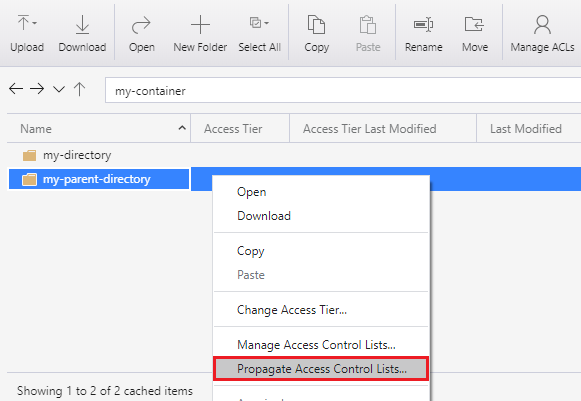
To apply ACL entries recursively, Right-click the container or a directory, and then click Propagate Access Control Lists. The following screenshot shows the menu as it appears when you right-click a directory.

Right-clicking a directory and choosing the propagate access control setting